309Something is brokenMaintenance · past SLAUrgent
Room 204Sample Hotel
Call receptionFront desk
Request a service
Extra towelsHousekeeping
Room cleaningHousekeeping
Something brokenMaintenance
In-room diningView menu
HomeMenuRequestsOrders
Illustrative product preview · stock photography
Why QRBell Hotel
The guest’s phone and your team’s workspace, finally connected.
Most guest requests still travel by phone and paper — and get lost between shifts. QRBell Hotel gives every room a direct, structured line to the right team.
01
The guest asks from the room
A scan of the room QR opens your services in the phone’s browser — nothing to install.
02
The request reaches the right team
It arrives in a shared queue with the room, the service, its department and a due time.
03
Everyone sees it move
Staff update the status as they work; the guest follows along on their room page.
Room 309 · MaintenanceSomething is broken · due in 30 min
AssignedMaintenance team
What’s included
Everything between the request and the response.
These capabilities are part of QRBell Hotel today. See all features.
01 · QR-based guest access
Every room has its own QR
Open access, or a 6-digit stay PIN shown once at check-in. Access ends at check-out, and staff can revoke a session early.
A hotel platform with two sides: a mobile guest page opened from the QR code in each room, and an operations workspace where staff handle service requests, food orders, rooms, stays, menus and staff access.
No. Scanning the room QR opens the guest page in the phone’s web browser. There is nothing to download and no guest account to create.
Your team links a QRBell QR code to each room. A scan opens that room’s page. Each property chooses open access, or a stay PIN — a 6-digit PIN shown to staff at check-in and given to the guest. Access ends when the stay ends.
Requests appear in the Requests queue as soon as a guest sends them, routed to the department that owns the service. Staff assign, add notes and update the status. Each service can have a target time, and overdue requests are escalated.
Yes. Built-in roles — Organization admin, Property manager, Front desk and Staff — control what each person can do, and access can be limited to specific properties and departments. Custom roles are not available yet.
Select Get Started to create an owner account, verify your email, then register your business and first property. Prefer a walkthrough first? Book a demo.
Get started
Give every room a direct line to your team.
Create your hotel account and set up your first property — or book a demo and we’ll walk you through it.


 Resorts
 Boutique
 Independent hotels
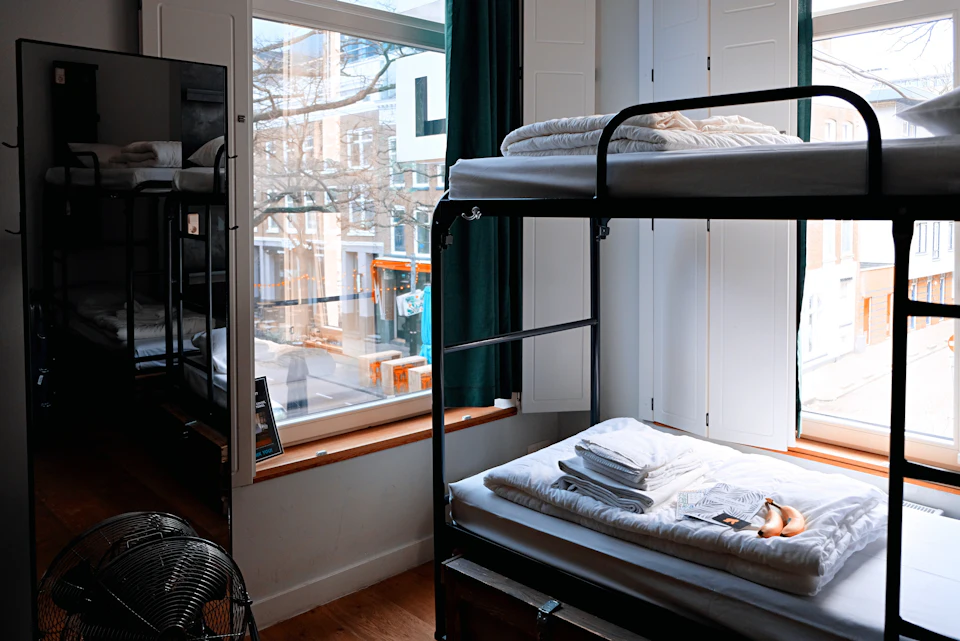 Hostels
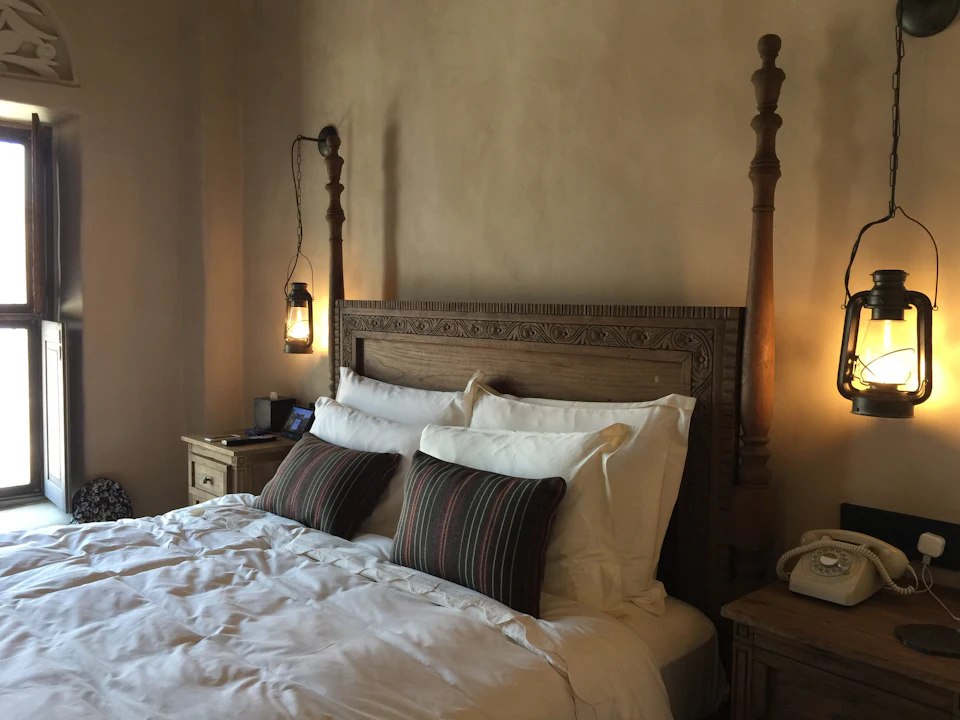 Guest houses