From your first sign-up to your first request handled.
Your team sets up QRBell Hotel in the operations workspace, at its own pace. Steps one to five happen once per property; six and seven repeat with every guest.

- Step 1 · Hotel team
Create an owner account
Select Get Started and sign up with your email and a password, or with Google. Email sign-ups confirm the address before continuing.
Your QRBell account is your sign-in for QRBell Hotel. You can also sign in later with a code sent to your mobile number.
- Step 2 · Hotel team
Register your business and first property
Enter your business details — name, type (hotel, resort, boutique hotel, hostel, guest house or chain) and country — then your first property. Both are created together when you finish the wizard.
More properties can be added to the same organization later.
- Step 3 · Hotel team
Configure buildings, floors and rooms
Under Structure, add buildings and floors, then rooms — individually or in bulk. Add departments such as Housekeeping, Maintenance or Front desk.

- Step 4 · Hotel team
Set up services, menus and staff access
Under Departments & services, choose what guests can request and give each service a target response time. Build and publish your in-room menu. Then invite staff by email and assign each a role and the properties or departments they cover.
Invited staff create their own QRBell account to accept — you never handle their passwords.
- Step 5 · Hotel team
Associate room QR codes
On the QR codes screen, link a QRBell QR code to each room and place it in the room. Each link shows whether it has been verified with QRBell; you can re-verify or revoke it at any time. In property settings, choose open access or a stay PIN.
Linking is manual, room by room. Contact us if you need help obtaining QRBell QR codes for your rooms. - Step 6 · Guest
Guests scan and use your services
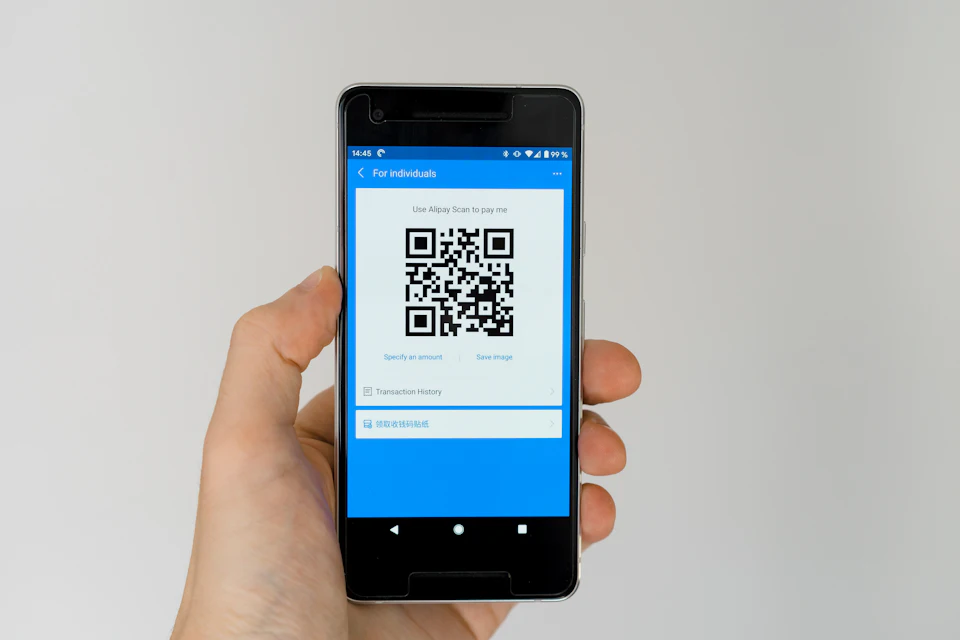
The guest scans the room QR with their phone camera. If your property uses a stay PIN, they enter the PIN from check-in. They can then call reception (where an intercom is set up), request a service or order from the menu.
- Step 7 · Hotel team
Staff process and update requests
Requests and orders appear in their queues in real time. Staff assign, add notes and update status; overdue requests are escalated. The guest sees each change on their room page. At check-out, the guest’s access to the room ends.
Open→Assigned→In progress→Completed

Ready to set up your first property?
Create your owner account now — or book a demo and we’ll go through the setup with you.